REALM is an essential audio utilities app for all mixing and mastering engineers.
Available for macOS via the Apple App Store.
Created by RT60 and Emre Ramazanoglu.


File Info
With File Info, you can batch analyze audio files as follows:
• drag and drop audio files or folders containing audio files
• extract detailed metadata including bit depth, sample rate, channel count, duration (ms and mm:ss.SSS), total samples, and ISRC codes if present
• display all extracted info in a clean, scrollable table with alternating row colors for easy reading
• export the full metadata table to a CSV file for further analysis or reporting
Simply drag and drop your audio files or folders onto the designated area. The app will analyze all audio files found, show progress, and present the results in the main window. You can then export the results as a CSV for use in other applications.

Level Adaptor
With Level Adaptor, you can batch convert audio files as follows:
• apply a global gain offset so that the loudest file in a batch has a specified loudness value (dB LUFS)
• apply a global gain offset so that the highest peak level in a batch is at a specified level (dB FS)
• normalise a batch of audio files to a specified loudness or peak value
• save batch audio files as specified sample rate and bit depth
For all conversions, a detailed CSV file is generated showing what gain has been applied to which audio files.
Drag and drop your audio folder and select the desired level adjustment settings, then click 'Process Folder Audio'. In the selected folder, a new 'processed' folder will be created, with the modified audio files, along with a .csv file. A table of the adjustments applied is also displayed in the main window.

ADM Quality Check
With ADM Quality Check, you can quickly compare and verify ADM WAV files as follows:
• load two lists of WAV files for side-by-side comparison
• check for duration differences between corresponding files within a tight tolerance
• analyze low-frequency effects (LFE) content with a user-definable frequency threshold
• run LFE-only quality checks if needed
• export detailed QC results as a CSV report for further review
To use, drag and drop folders or WAV files onto the two file lists labeled ADM QC File List and Comparison File List. Adjust the LFE frequency threshold or toggle LFE-only mode in the settings below. When ready, click Run QC Check to start analysis. Once complete, review pass/fail results in the summary table and optionally export the data to CSV. The interface disables irrelevant controls while processing to avoid errors.

ISRC Edit
With ISRC Edit, you can efficiently assign and embed ISRC codes into batches of WAV files:
• drag and drop a folder of WAV files into the drop zone for batch processing
• automatically generate sequential ISRC codes starting from your chosen base code
• review and edit file names and ISRC codes before processing
• choose to append ISRC codes to output filenames for easy identification
• set a custom output folder name or path for the processed files
• save and load session data to continue your work later
To use, drop your WAV folder into the main area. Enter your starting ISRC code, adjust file names or ISRCs as needed, and select your output folder options. Click Process Files to embed ISRC metadata and export new WAVs. The app displays progress and a summary of results, with controls disabled during processing to prevent errors. Use Save Session and Load Session to manage your work across multiple sessions.

File Sort
With File Sort, you can batch organize files by dragging and dropping folders or files:
• Sort files by extension or by tags found in filenames
• Add a global folder name prefix to customize destination folders
• Edit filenames and destination folders in a table before sorting
• Choose to move or copy files to the sorted locations
Drop files and folders into the specified area. Use the folder picker to specify a custom destination if needed. When sorting completes, files are moved or copied into the organized folders.

Unpack Folders
With Unpack Folders, you can batch unpack folders with the following features:
• drop multiple folders into the tool for batch processing
• extract and move the contents of each folder into a chosen destination folder
• optionally delete the original folders after unpacking
• view a list of selected folders and live status messages as the operation progresses
To use the tool, drag and drop one or more folders into the drop area on the left. Then select an output directory using the "Select Output Folder" button. When you're ready, click "Unpack Folders" to begin. If enabled, original folders will be deleted once their contents have been unpacked. Use "Reset Folders" to clear your current selection and start again.

Rename Files
With the Rename Files feature, you can quickly rename files in bulk with the following features:
• drop a folder into the tool to automatically list all files inside for batch renaming
• choose from flexible renaming options: replace text, append or prepend, add dates, remove characters, or change case
• preview original and new file names before applying changes
• rename all files in place with a single click
To use the batch renamer, drag and drop a folder into the drop area. Select your desired renaming option and fill in any required fields. Preview the changes, then click "Rename" to apply them. Use "Reset" to clear your selection and start again.

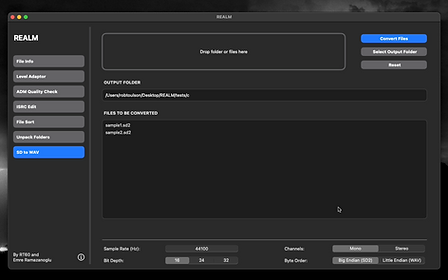
SD2 to WAV Converter
With SD2 to WAV Converter, you can easily convert legacy SD2 audio files to standard WAV format:
• drag and drop SD2 files or folders into the drop zone for batch processing
• review and edit output filenames before conversion
• select a custom output folder for your converted WAV files
• adjust sample rate, bit depth, channels, and byte order for raw PCM files if needed
• monitor conversion progress and view a summary of successful and failed conversions
To use, simply drag your SD2 files or folders into the main drop area. Choose your desired output folder, and optionally adjust audio settings for raw PCM files in the settings panel. Click Convert Files to begin. The app will display progress and notify you of any issues. Use the Reset button to clear the file list and start a new batch. Controls are disabled during processing to prevent errors.